Ollama setup: run AI on your own laptop
Why a local language model makes sense when data should not leave the building, and how to set up Ollama in four steps on macOS, Windows or Linux. Every command comes from the official docs.
Video from YouTube
This video is hosted on YouTube. As with any embedded YouTube video, YouTube (Google) receives the usual technical data, such as your IP address.
Why run a model on your own laptop?
When you paste something into a public chatbot, it leaves your computer and is processed on someone else's server. For a lot of everyday work that is fine. For a customer list, a contract or internal notes, it often is not, and in a German workplace that question comes up fast.
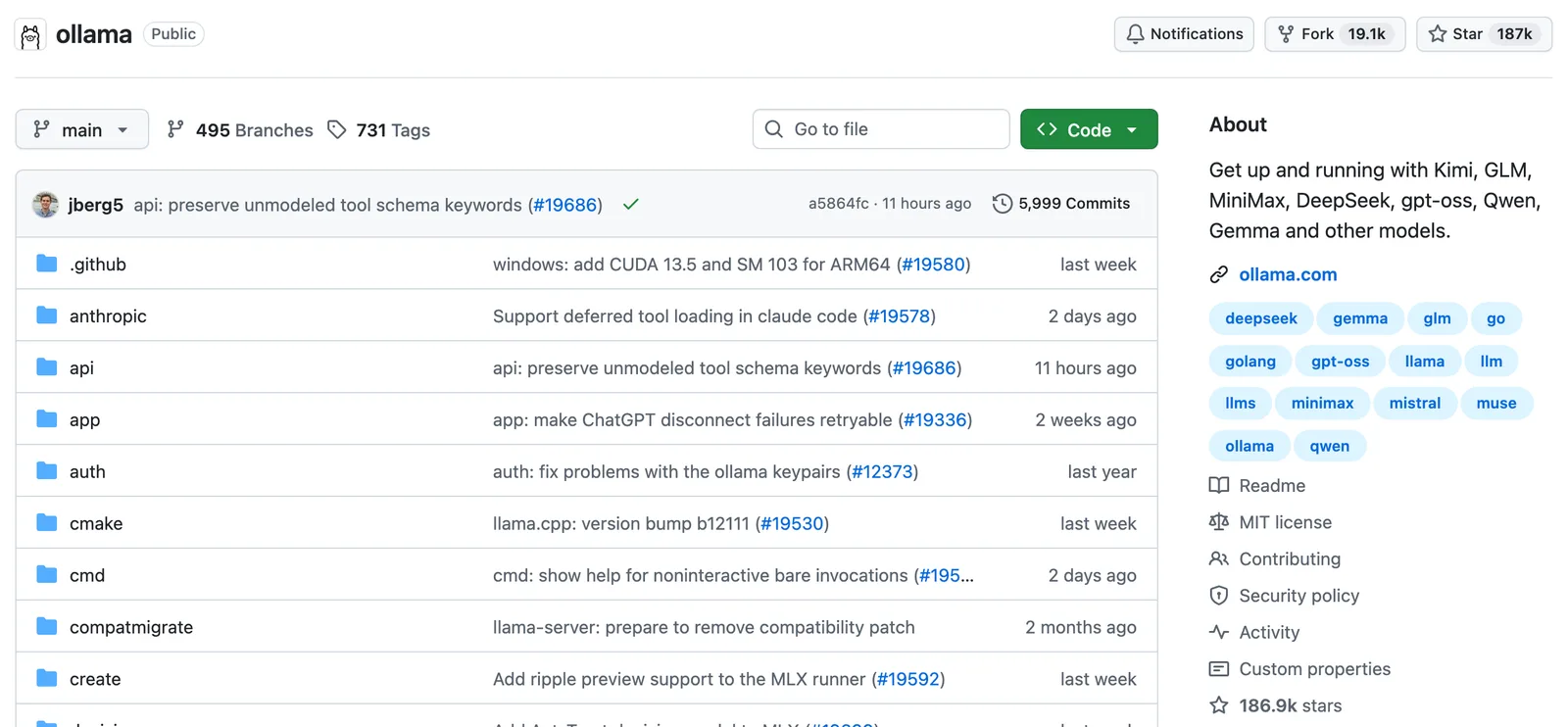
Ollama is a free, open-source tool that runs large language models directly on your machine. It is MIT-licensed and one of the most popular AI projects on GitHub (186.9k stars when we checked on 14 November 2026). Ollama's own FAQ puts it plainly: "We don't see your prompts or data when you run locally."
What that gets you:
- Your data stays on your device. The model runs on your laptop, so prompts and answers are not sent to a provider.
- It works offline. Once a model is downloaded, you can switch off your Wi-Fi and it still answers.
- No API key, no per-request bill for local models. You pay with disk space, memory and battery.
- One local endpoint for your tools. Scripts, automations and coding tools can talk to it at
localhost:11434.
Before you start
From the official system requirements:
- macOS: Sonoma (14) or newer. Apple Silicon (M-series) runs models on CPU and GPU; Intel Macs run on CPU only.
- Windows: Windows 10 22H2 or newer, Home or Pro. The installer needs no administrator rights and installs into your home folder.
- Linux: amd64 or ARM64. NVIDIA and AMD GPUs are supported with the right drivers.
- Disk space: a few GB for Ollama itself, plus the models. Small models are 1–3 GB, larger ones tens of GB.
Step 1: Install Ollama
The commands below are the ones on ollama.com/download. Pick your system.
macOS and Linux
Open Terminal and run:
curl -fsSL https://ollama.com/install.sh | shOn a Mac you can also click Download manually, open Ollama.dmg and drag Ollama into your Applications folder. On first launch it offers to add the ollama command to your terminal.
Windows
Open PowerShell and run:
irm https://ollama.com/install.ps1 | iexPrefer a normal installer? Click Download manually and run OllamaSetup.exe.
Check that it worked
Open a new terminal window and run:
ollama -vIf you see a version number, Ollama is installed. On macOS and Windows, Ollama now runs in the background (look for the llama icon in the menu bar or system tray) and downloads its own updates. On Linux, run the install command again to update.
Step 2: Pick a model that fits your memory
This is the step most people get wrong. A model has to fit into your computer's memory (RAM, or the GPU's VRAM) while it runs, next to your browser and everything else you have open. Every model page on ollama.com/search lists the download size of each version:
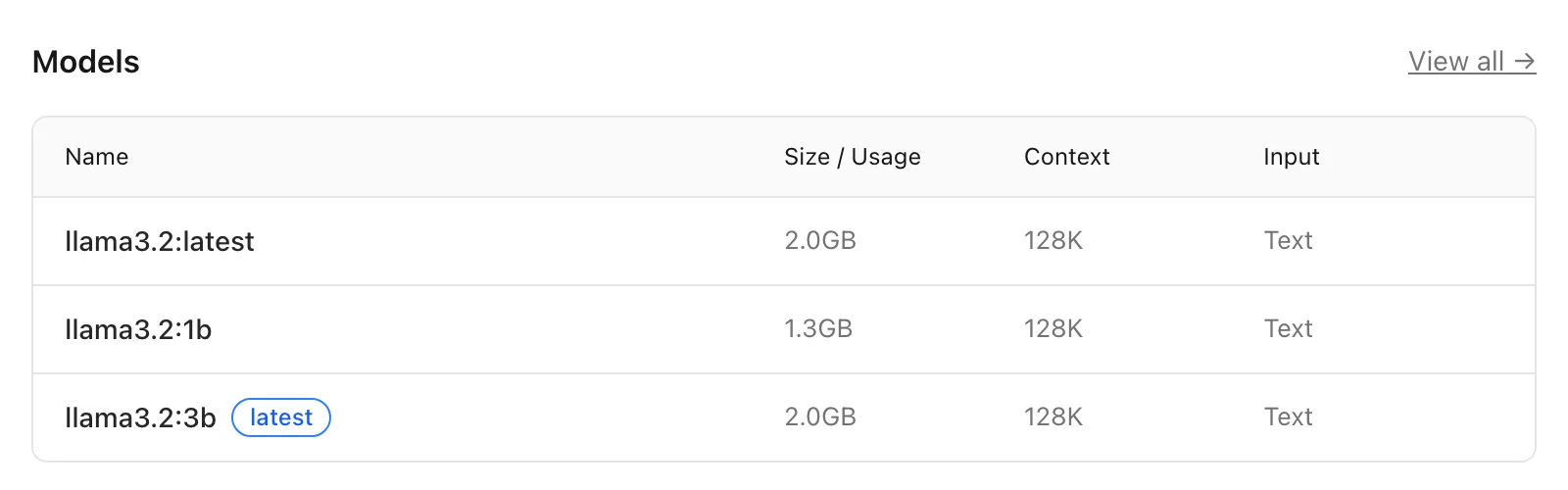
Our rule of thumb: pick a model whose download size is well under half your total memory. That leaves room for the operating system and your other apps. These are starting points, not benchmarks:
| Your computer's memory | Try first | Download size |
|---|---|---|
| 8 GB | llama3.2:3b or qwen3:4b | 2.0 GB / 2.5 GB |
| 16 GB | qwen3:8b | 5.2 GB |
| 32 GB | qwen3:14b or gemma4:12b | 9.3 GB / about 8 GB |
| 64 GB or more | gemma4:26b or qwen3:30b | 16–19 GB / 19 GB |
Sizes from the model pages on ollama.com, 14 November 2026. Ollama's own quickstart uses gemma4:e2b (about 7.2 GB) and recommends 8 GB of free VRAM, or unified memory on a Mac, for it.
Step 3: Download it and ask it something
Download the model once:
ollama pull llama3.2:3bThen start a chat in your terminal:
ollama run llama3.2:3bType a question and press Enter. Type /bye to leave. You can also chat in the Ollama app window on macOS and Windows.
Now the proof. Turn your Wi-Fi off and ask it something again. It still answers, because nothing needs to leave your laptop.
A few commands you will use often:
ollama list              # models you have downloaded
ollama ps                # models loaded right now, and whether on GPU or CPU
ollama rm llama3.2:3b    # delete a model to free up disk space
If ollama ps shows 100% GPU, the model runs entirely on your graphics chip, which is the fast case. A CPU split means it is slower. Try a smaller model.
Keep it local-only
Ollama can also run cloud models, which are processed on Ollama's servers rather than on your machine. They are marked cloud on ollama.com and need you to sign in. If the point is that nothing leaves your laptop, the docs describe how to switch cloud features off: set the environment variable OLLAMA_NO_CLOUD=1, or add disable_ollama_cloud in ~/.ollama/server.json.
Step 4: Point your tools at localhost
While Ollama is running, it serves an API on your own machine at http://localhost:11434. Anything that can send a web request can use it. A quick test from the terminal:
curl http://localhost:11434/api/chat -d '{
  "model": "llama3.2:3b",
  "messages": [{ "role": "user", "content": "Summarise GDPR in one sentence." }],
  "stream": false
}'
Many tools already speak the OpenAI API format, and Ollama understands it too. In the tool's settings, set the base URL to http://localhost:11434/v1/. If it insists on an API key, enter ollama: it is required but ignored. In Python with the official openai package:
from openai import OpenAI

client = OpenAI(base_url="http://localhost:11434/v1/", api_key="ollama")

reply = client.chat.completions.create(
    model="llama3.2:3b",
    messages=[{"role": "user", "content": "Write a polite reminder email."}],
)
print(reply.choices[0].message.content)Before real customer data goes in
Running a model locally changes where the data goes. It does not decide on its own whether a particular use is allowed. That decision belongs to your company and its data protection officer. Questions worth taking to them:
- Which kinds of data may we process with a local model, and which not at all?
- Is the laptop itself protected: disk encryption, screen lock, up-to-date system?
- Are Ollama's cloud features switched off, so nothing is sent out by mistake?
- Does the model's licence allow our use?
- Who checks the model's output before it goes to a customer or into a decision?
Where this fits in our programs
Running models locally is part of Ai School's course content:
- In the Full Stack AI & Cloud Engineering Program and the Advanced AI Systems & Cloud Engineering program, Ollama and vLLM are covered in the cloud stage, together with private deployment. One exercise: run the same task against a public API and a local model, then compare speed, cost and privacy.
- In AI & Automation Skills for Professionals, the first module covers safe AI use at work and GDPR basics: the "what may go into which tool" question this guide starts with.
All programs are live online and full-time. Whether a Bildungsgutschein covers your place is decided by the Agentur für Arbeit or Jobcenter. See how funding works.
Official sources
- Ollama quickstart
- Download page with install commands
- Platform guides: macOS, Windows, Linux
- FAQ: privacy, local-only mode, network access, where models are stored
- OpenAI compatibility
- ollama/ollama on GitHub
- Model library
Ollama changes quickly. If a command here no longer matches the official docs, the docs win. Checked on 14 November 2026.