Job search with Claude: find jobs, tailor your CV, prepare applications
Three ways Claude can help with your job search: find matching jobs on the web, search career pages and pre-fill applications, and create a CV for each job as a PDF. With ready-to-use prompts.

Video from YouTube
This video is hosted on YouTube. As with any embedded YouTube video, YouTube (Google) receives the usual technical data, such as your IP address.
Finding a job takes a long time, and right now it is harder than usual. You open a job portal, type in your field and get hundreds of results. Half of them are senior roles. Many "junior" ads ask for three years of experience. You find a few that fit, adapt your CV for each one, write a cover letter, type your name and email into yet another application form, and press Send. Then, often, you hear nothing for weeks.
If you have just finished university, a training program or a career change, the numbers are not on your side. Indeed analysed job ads in Germany and found that in July 2026 there were 46% fewer entry-level ads than in 2019. IT and marketing were hit hardest.
A lot of your time goes into work that does not really need you: searching the same portals again and again, reading job ads that turn out not to fit, rewriting your CV for every job, and typing the same details into forms. This guide shows you how to hand that work to Claude, so you can spend your time on the applications that matter.
Three ways Claude can help
- Find jobs on the web. Claude searches job boards and company sites for jobs that match your CV and gives you a sorted list with a score for each job. This works on every Claude plan, including Free.
- Search career pages and pre-fill applications. Claude opens the careers pages of companies you choose, checks every job against your CV and fills in the application form for your best match. You need Claude Desktop and a free connector for this.
- Create a CV for each job. Claude rewrites your CV for a specific job ad and saves it as a PDF. You can do this in the chat on any plan, or for many jobs at once with Claude Code.
Before you start: prepare your CV and goal
Your CV as a file. A PDF works in the chat. For the career-page method below, a text file (.txt or .md) works best. Leave out anything an employer does not need at this stage, such as your date of birth, home address and photo.
A clear description of the job you want. Name the role, the level, the city, the languages you speak and when you can start. "Junior data analyst, Berlin or remote in Germany, from January 2027, German native and English C1" gives a much better result than "a job in data".
1. Find jobs with Claude's web search
Claude can search the web, and this is available on every plan, including Free. In a new chat on claude.ai or in Claude Desktop, check that Web search is switched on (click the settings button in the message box). Attach your CV and send this prompt. Replace the part in square brackets with your own goal.
My CV is attached. Read it first. Then use web search to find jobs that match my profile.

What I am looking for: [junior or graduate roles in data analysis, BI or reporting. Berlin, or remote within Germany. Start from January 2027. German native, English C1. No working-student or internship roles.]

1. SEARCH. Run several different searches: different job titles, German and English keywords, my city and remote. Look on company career pages, the Bundesagentur für Arbeit Jobbörse and other job boards. Only include ads you can open and that look current (posted or updated in the last 30 days, and no closing date passed).

2. CHECK. Open each ad and read the requirements. Drop anything that needs much more experience than I have, a language I do not speak, or a qualification I do not have.

3. LIST. Give me a table of the best 10, best match first: company, job title, location, fit score from 0 to 10 (be strict), one line on why it fits, one line on what is missing, and the link to the ad. If the ad is on a job board, also look for the same job on the company's own careers page and give me that link too.

4. Tell me which searches you ran, which jobs you dropped and why, and anything I should double-check.

Do not apply to anything and do not sign up anywhere.
When we tried this prompt with a sample CV, Claude ran about 25 searches across the open web, the Jobbörse and StepStone, and opened every ad it found. It dropped jobs that asked for years of experience, jobs that were already closed and jobs in the wrong city. It also told us which ads it could not open, so we could check them by hand.
The word "strict" in the prompt matters. Without it, Claude tends to score senior roles too high.
Before you apply, always open the link yourself and check that the job is still open. A job can close between the search and your application.
2. Search career pages and pre-fill applications
Some companies only post jobs on their own website, and many people have a list of employers they would really like to work for. For this, Claude needs a browser it can control. You set that up once in Claude Desktop.
What you need
- Claude Desktop for macOS or Windows, from claude.ai/download.
- Node.js 18 or newer from nodejs.org. To check, open a terminal and run
node --version. - A list of companies whose careers pages you want Claude to search. Start with about ten.
Step 1: Connect Playwright to Claude Desktop
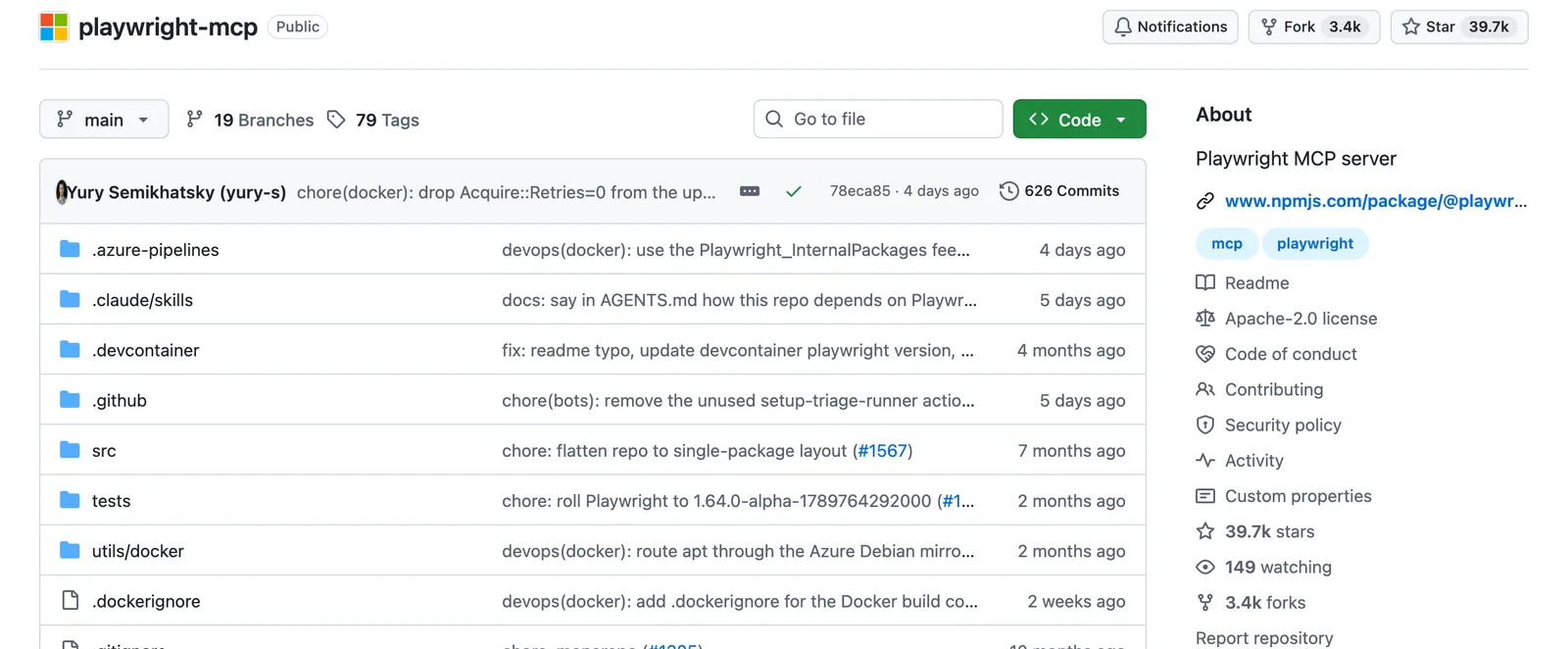
Playwright MCP is a free, open-source connector from Microsoft. It lets Claude open a browser, click, type and read web pages.
- In Claude Desktop, open the Claude menu in the menu bar at the top of your screen (not the settings inside the chat window) and choose Settings…
- Go to Developer and click Edit Config. This opens a file called
claude_desktop_config.json. - Add the Playwright connector. If the file already contains other settings, add the
mcpServerspart next to them:
{
  "mcpServers": {
    "playwright": {
      "command": "npx",
      "args": ["@playwright/mcp@latest", "--isolated"]
    }
  }
}- Save the file. Quit Claude Desktop completely and open it again.
- Start a new chat, click the + button at the bottom left of the message box, then Connectors → Manage connectors. You should see playwright in the list.
The --isolated option matters. It gives Claude a fresh browser each time, and that browser forgets all cookies and logins when it closes. Without it, Playwright keeps a browser profile on your computer, and you would stay logged in to any site you signed in to there. Claude should not have access to your accounts, so keep this option.
If you want to open the file directly, it is here:
- macOS:
~/Library/Application Support/Claude/claude_desktop_config.json - Windows:
%APPDATA%\Claude\claude_desktop_config.json
Step 2: Send the prompt
Attach your CV, then copy this prompt into the chat. Replace the company list and the job description with your own. Keep the rules at the end. They stop Claude from logging in anywhere, inventing anything or sending an application.
You are helping me with my job search. My CV is attached. Use the Playwright browser tools.

1. SEARCH. Open the careers pages of these companies and look for open junior or graduate roles in data analysis, BI or reporting, in Berlin or remote in Germany:
   - https://jobs.zalando.com
   - https://careers.hellofresh.com
   - https://n26.com/en/careers
   - https://careers.deliveryhero.com
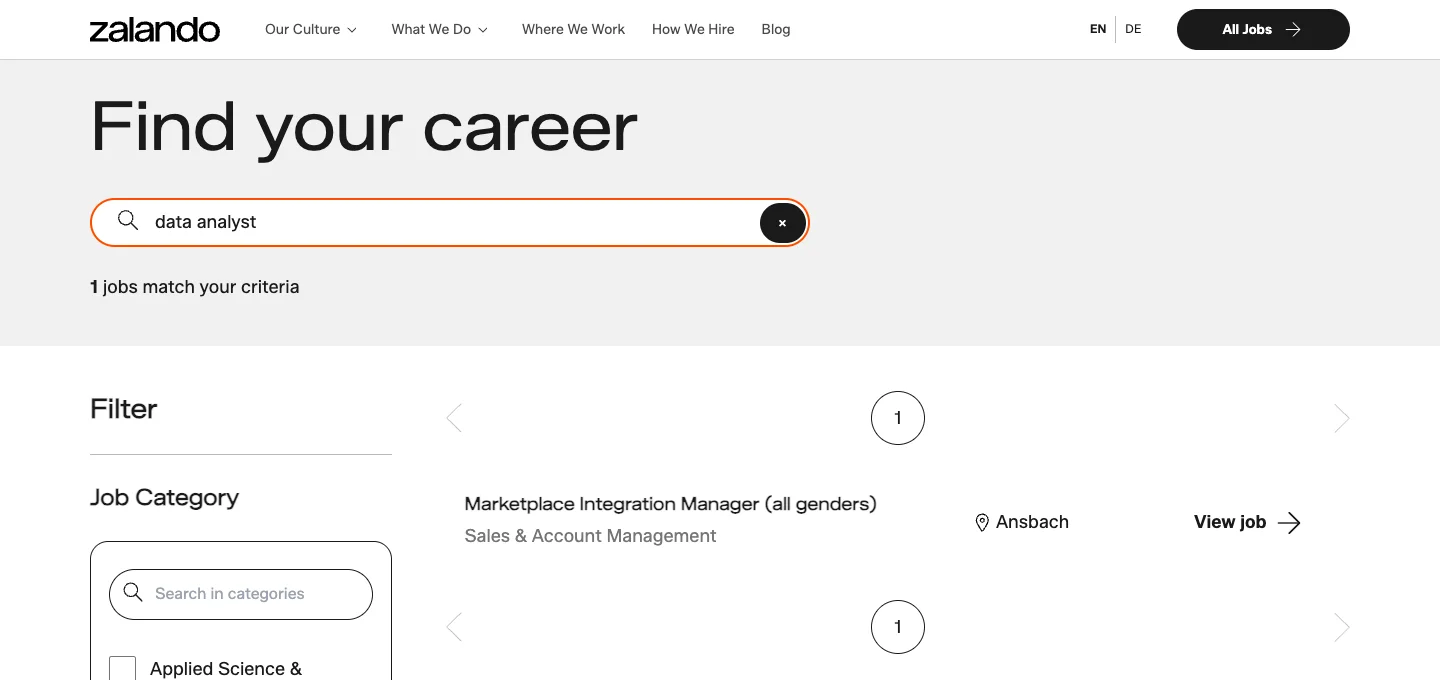
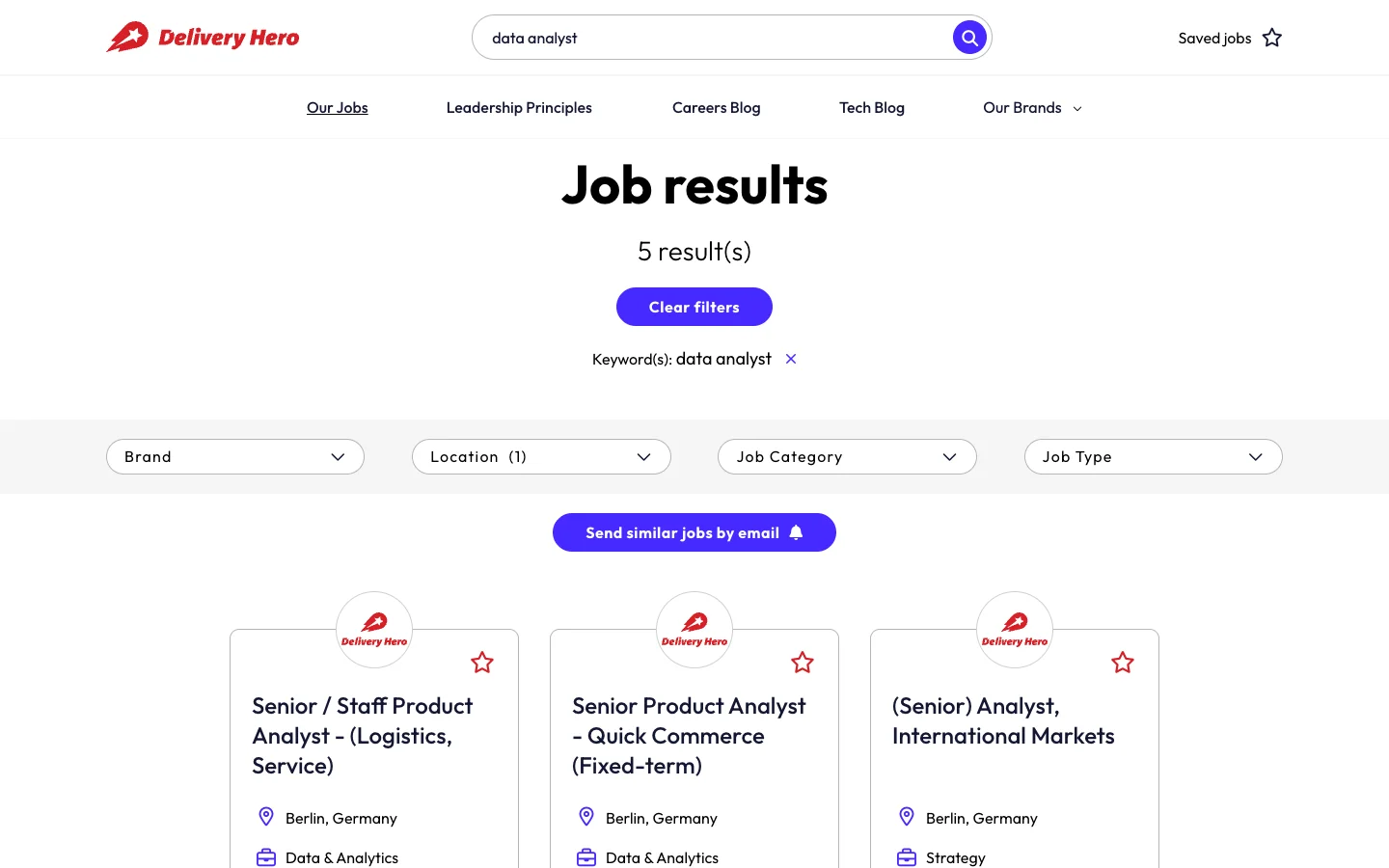
   Use each site's own search or filters. Decline optional cookies if a banner appears. Do not log in and do not create accounts anywhere. If a site blocks you, skip it and say so.

2. SCORE. For every relevant job you found, give a fit score from 0 to 10 against my CV, one line on why, and one line on what is missing. Be strict: a role asking for 3+ years of experience is not a strong match for a new graduate. Show the table best match first, with the job URL.

3. PREPARE ONE APPLICATION. Only if a job scores 7 or higher: open its application form. Fill in only what my CV supports: name, email, phone, links, education, skills. For any free-text question (for example "Why do you want to work here?"), write a short, honest answer of 3 to 4 sentences that connects the job ad to my real experience. Never invent experience, grades or certificates. Do not upload files. If the form needs an account or login, stop there.
   NEVER click Submit, Send, Apply or any button that sends the application. Stop before that.

4. REPORT. Finish with: which sites worked, the top 3 matches, and a checklist of what I must check myself before I press Submit.
Claude Desktop asks for your permission before it uses the browser. Watch the first few steps. If you are happy with what it does, allow it for the rest of the chat.
Step 3: Let Claude search
Claude now works through the list on its own. It uses each site's own search and filters, declines optional cookies and moves on to the next company. For four career pages, this took about seven minutes. At the end you get a table with a score, a reason and the missing requirements for every job.
Step 4: Check the form and submit it yourself
For your best match, Claude opens the application form and fills in the fields your CV supports: name, email, education, skills, links. It leaves optional boxes unticked, such as consent to marketing emails, and it does not upload files.
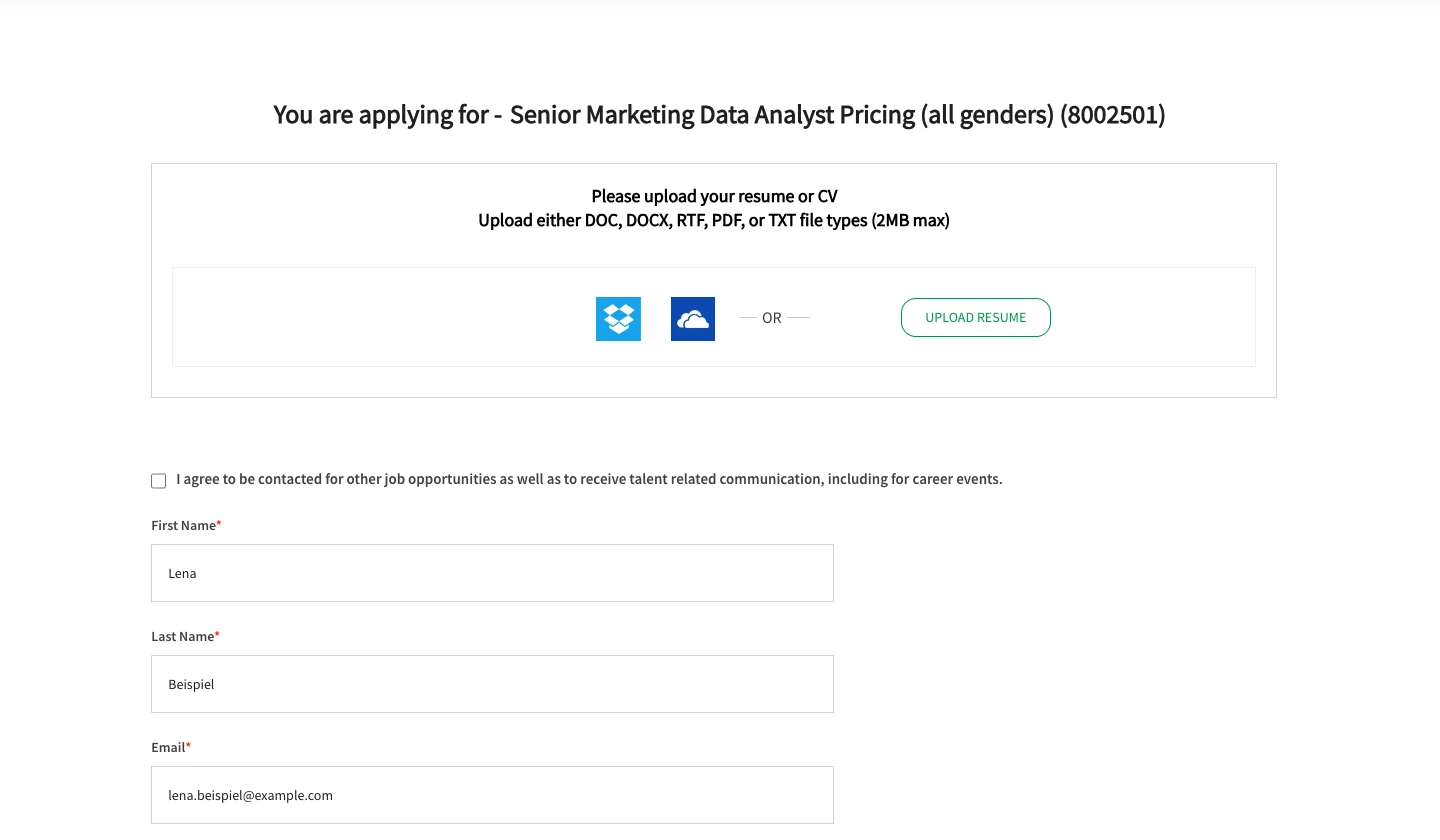
Some forms have more than one page. On some sites, the Continue button already sends your details to the company. Claude stops before that button too, and tells you what is left to do.
Before you submit:
- Read every field. Claude can misread a form or put text in the wrong field.
- Rewrite the draft answers to questions like "Why do you want to work here?" in your own words.
- Upload your CV (ideally the version made for this job, see the next part) and, if needed, your cover letter and certificates.
- Check the dates, grades and job titles against your real CV.
- Read the privacy note and decide which optional boxes you want to tick.
3. Create a CV for each job
A CV that uses the words of the job ad and puts your most relevant experience first is easier for recruiters to read and for application software to match. Doing that by hand for every job takes time. Claude can do the first draft. The rule is always the same: Claude may reorder and reword what is in your CV, but it may not add anything that is not true.
In the chat (all plans, including Free)
Claude can create PDF and Word files in the chat on every plan. If you do not see a file, check that Create and edit files is switched on under Settings → Capabilities.
Attach your CV, paste the full job ad below this prompt and send it:
My CV is attached. Below is a job ad I want to apply for.

Write a version of my CV for this job and give it to me as a PDF file.
- Use the language of the job ad. Keep it to one or two pages.
- You may reorder sections, choose which experience and skills to show first, rewrite bullet points so they use the same words as the job ad, and add a short profile at the top for this job.
- You may not add any skill, tool, certificate, grade, date, job title or result that is not in my CV. If the job asks for something I do not have, leave it out.
- Use a simple layout that application software can read: one column, standard fonts, clear headings, no photo, no tables, no graphics.

After the PDF, list what you changed and why, which requirements I do not meet, and any questions you have for me.

Job ad:
[paste the job ad here]
Repeat this in a new chat for each job. Read the PDF carefully before you use it.
With Claude Code (Pro plan or higher)
If you apply to many jobs, Claude Code saves you even more work. It works with the files in a folder on your computer, so you can keep all your materials in one place and get a new CV for every job in one go. Claude Code needs a paid plan (Pro or higher). You can use it in the Code tab of Claude Desktop, so you do not need a terminal.
First, create a folder for your job search with three folders inside:
job-search/
├── my-materials/   your CV, certificates, notes on projects and experience
├── jobs/           one text file per job ad (the ad text or the link)
└── cvs/            empty: Claude saves the new CVs here
Put everything about you into my-materials/: your current CV, your certificates, notes on projects, your thesis, volunteer work, numbers you are proud of. Claude can only use what is in this folder, so the more you add, the better the result. For each job you want to apply for, create a text file in jobs/ and paste the job ad or its link into it. The jobs you found with the web-search prompt in part 1 are a good start.
Then open the folder in Claude Code and send this prompt:
This folder is my job search.

- my-materials/ has everything about me: my current CV and my notes on projects and experience. This is the only source of truth about me.
- jobs/ has one file per job I want to apply for. Each file has the job ad text or a link to it.
- cvs/ is where you save the results.

For each job in jobs/:

1. Read the job ad. If the file only has a link, open it.
2. Write a CV for this job. Use the language of the job ad. Keep it to one or two pages.
   You may: reorder sections, choose which experience, projects and skills to show first, rewrite bullet points so they use the same words as the job ad, and write a short profile at the top for this job.
   You may not: add any skill, tool, certificate, grade, date, job title or result that is not in my-materials/. If the job asks for something I do not have, leave it out.
3. Save it as a PDF in cvs/<company>-<job-title>/cv.pdf. Use a simple layout that applicant tracking systems can read: one column, standard fonts, clear headings, no photo, no tables, no graphics.
4. Save notes.md in the same folder: what you changed and why, which requirements I do not meet, and any questions for me.

Start with the first job only. Show me the result and wait for my OK before you do the others.
Here is the first CV from our test. The materials were a sample graduate CV and a page of notes. The job was a German data analyst ad, so Claude wrote the CV in German, put the data cleaning and forecasting experience first because the ad asked for it, and kept everything on one page.
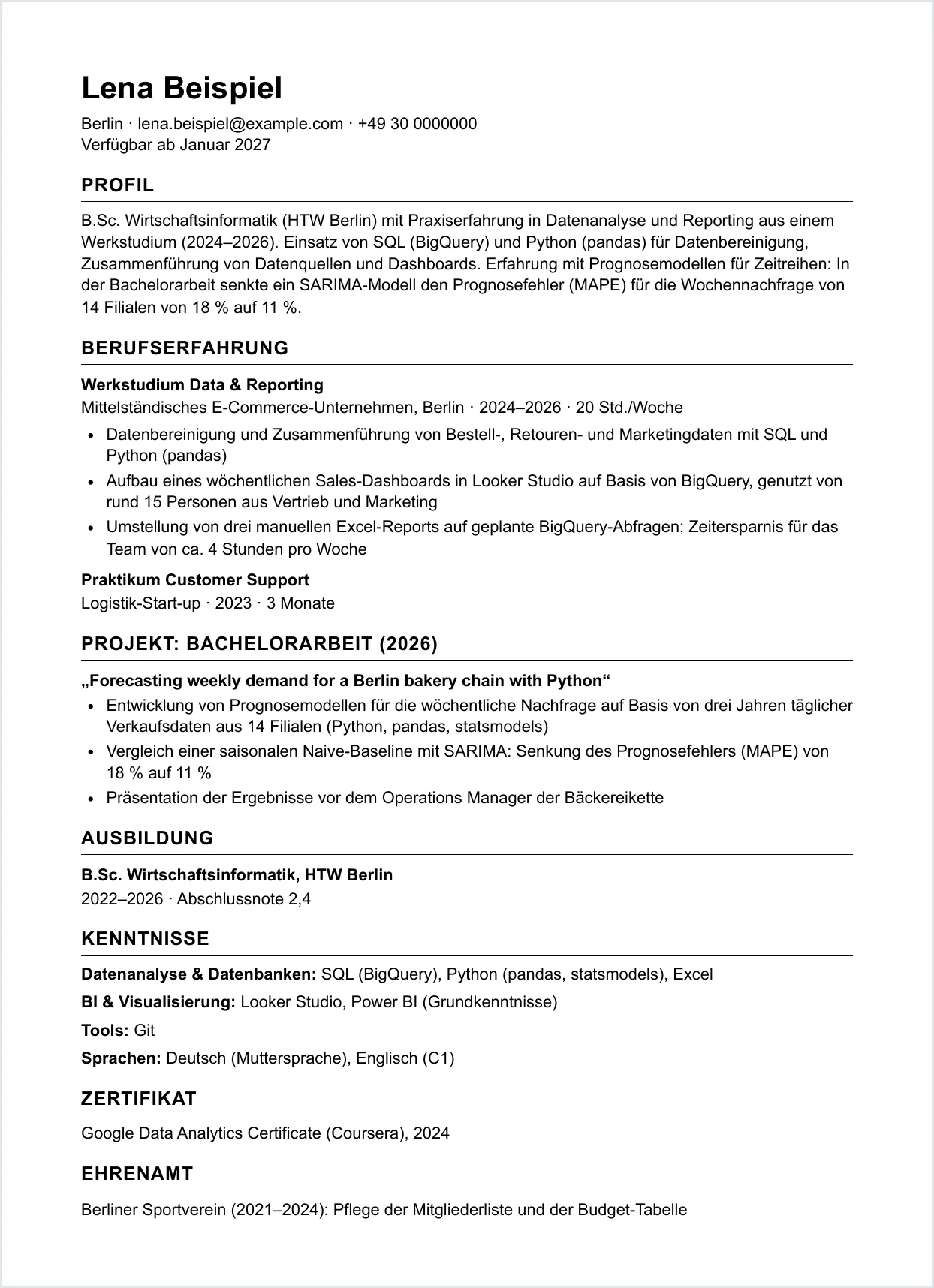
The notes file next to it is just as useful. In our test it said which requirements were missing (NumPy, scikit-learn and Tableau were in the ad but not in the materials, so it left them out) and asked questions, for example whether the thesis code was on GitHub, because the ad asked for a code sample.
The last line of the prompt is important. Check the first CV carefully. If you want changes, for example a different layout or a shorter profile, tell Claude now. It then uses your feedback for all the other jobs. Next time you find new jobs, add files to jobs/ and send the prompt again.
Rules for using this safely
Only automate company career pages. LinkedIn's User Agreement (section 8.2) does not allow bots or automated access, and LinkedIn says auto-apply tools can get your account restricted. Many other job portals have similar rules. A company's own careers page is the safest place to let Claude click through a site, and the job ad there is the original.
Always click Submit yourself. An application goes out under your name. Claude can make mistakes, so read everything before you send it.
Never let Claude invent anything. No made-up projects, grades or certificates. If it is not in your CV, it should not be in your application. In the interview, you need to be able to talk about everything you wrote.
Send fewer, better applications. Fifty almost identical applications in one day usually lead to fifty rejections. Use the scores to choose the jobs that really fit, then put your time into making those applications good.
Protect your data. Your CV is sent to Anthropic, like everything else you give Claude. Leave out what the employer does not need yet. In Claude's settings under Privacy, check whether your chats can be used to train the models, and turn it off if you want. Never type passwords into the chat, and do not log in to any site in the browser Claude controls.
When Claude can't fill in the form
Claude stops when a site needs an account first, which many large employers require. It also stops on pages with a CAPTCHA or bot protection, and you should not try to get around those. On these sites you apply by hand, but Claude can still help you prepare in the chat:
- Make a CV for the job with the prompt from part 3, then upload it yourself.
- Draft your cover letter. Ask for a first draft based on the job ad and your CV, then rewrite it in your own words.
- Prepare your answers. Many forms ask the same questions: why this company, your salary expectations, your notice period, your start date. Prepare these answers once and reuse them.
- Find your gaps. Ask Claude to compare the job ad with your CV and list what is missing. That tells you what to learn next, or what to explain in your cover letter.
- Practise the interview. Ask Claude to play the interviewer for this exact job and give you feedback on your answers.
There is also a limit to how much Claude can do in one chat. Each page it reads uses part of your plan's usage. Ten companies or ten jobs at a time works well. Two hundred at once does not.
Make the prompts your own
Once everything works, a few small changes make the prompts more useful:
- Ask for the job list as a CSV file, so you can track your applications in a spreadsheet.
- Add your own limits to the rules, for example "no jobs that need German at C2 level" or "no relocation".
- Run the web-search prompt once a week with "only jobs posted in the last 7 days".
- Ask Claude to draft a cover letter for your top match in a separate chat.
How we help our students with job searching at Ai School
Tools like this help you search faster. Most people also need someone to look at their CV, practise interviews with them and help them plan their search. That is why career coaching is part of our programs. During and after the program, our students get help with their CV and LinkedIn profile, interview practice and support with the job search on the German job market.
See our programs to find out what each one covers and how the career coaching works.